Gridsnap vs Floorplanner: Planning and Furnishing a Home Online
Floorplanner and Gridsnap both let you draw a home in the browser, furnish it and choose finishes. The difference is what you leave with. Floorplanner is built around a very large 3D library and furnished images up to 8K, paid per project with credits; its free projects export watermarked SD images. Gridsnap is built around exact dimensions: you lay out, furnish and finish the rooms, then export a scaled vector PDF (technical or textured), DWG/DXF, schedules and an overhead image, all free. Pick by the deliverable you need.
Choose each when
Choose Gridsnap when
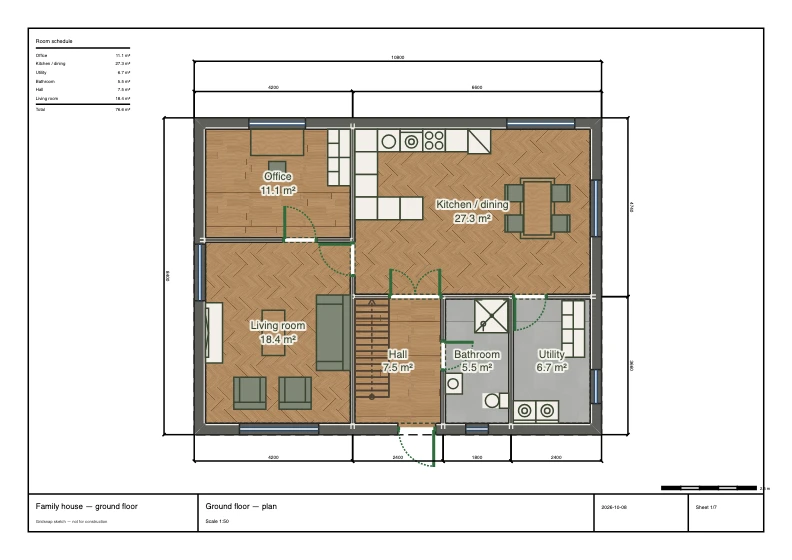
Choose Gridsnap when the plan has to be right as well as look right: a renovation you will price with a builder, a room where the sofa and the door have to clear each other, a kitchen you are choosing finishes for. You get exact sizes, furniture you can resize to the product you are buying, finishes on single walls and furniture parts, and free deliverables: a measured PDF, a textured plan with a finish legend, a finish schedule and a DWG.
Choose Floorplanner when
Choose Floorplanner when the deliverable is a furnished picture: staging a listing, showing a client a styled room, or making a high-resolution image of a design. Its library is far larger than Gridsnap’s catalog and its paid project levels render up to 8K, which Gridsnap does not attempt. If you need one polished image rather than a set of drawings, paying a few credits for one project is a reasonable trade.
Gridsnap vs Floorplanner
| Gridsnap | Floorplanner | |
|---|---|---|
| Price | Free; Gridsnap Pro as 90-day Pro access ($39 once), Pro Monthly ($19/month) or Pro Annual ($149/year), with the same features on all three | Free projects; per-project upgrades paid in credits ($8.15 for 5 credits, about $1.63 each); subscriptions also offered |
| Free tier | Draw, furnish, finish and export free, with no account needed to draw; unlimited local projects; one synced cloud project with an account | Up to 5 free projects, 3 floors and 3 designs each; SD (960×540) exports with a watermark |
| Platform | Web browser; nothing to install | Web browser |
| Furniture | Furniture catalog with editable width, depth and height, wall snapping, placed in plan or 3D (free). Furnish a room automatically on Pro | Very large library of 3D models and materials, including branded products |
| Finishes and materials | Finishes on room floors, single wall faces, furniture parts, doors, windows and stairs, from built-in materials and the Gridsnap texture library; no upload of your own textures (free). Room kits and saved finish schemes on Pro | Colours and materials dragged onto walls and surfaces; upload your own wallpaper or image to a wall |
| 2D plan output | Technical or Textured plan, free: the PDF keeps lines and text vector with image texture fills; PNG is a raster image. Optional finish legend | Free: SD image with watermark. Upgraded projects: 2D at HD or 4K, plus PDF |
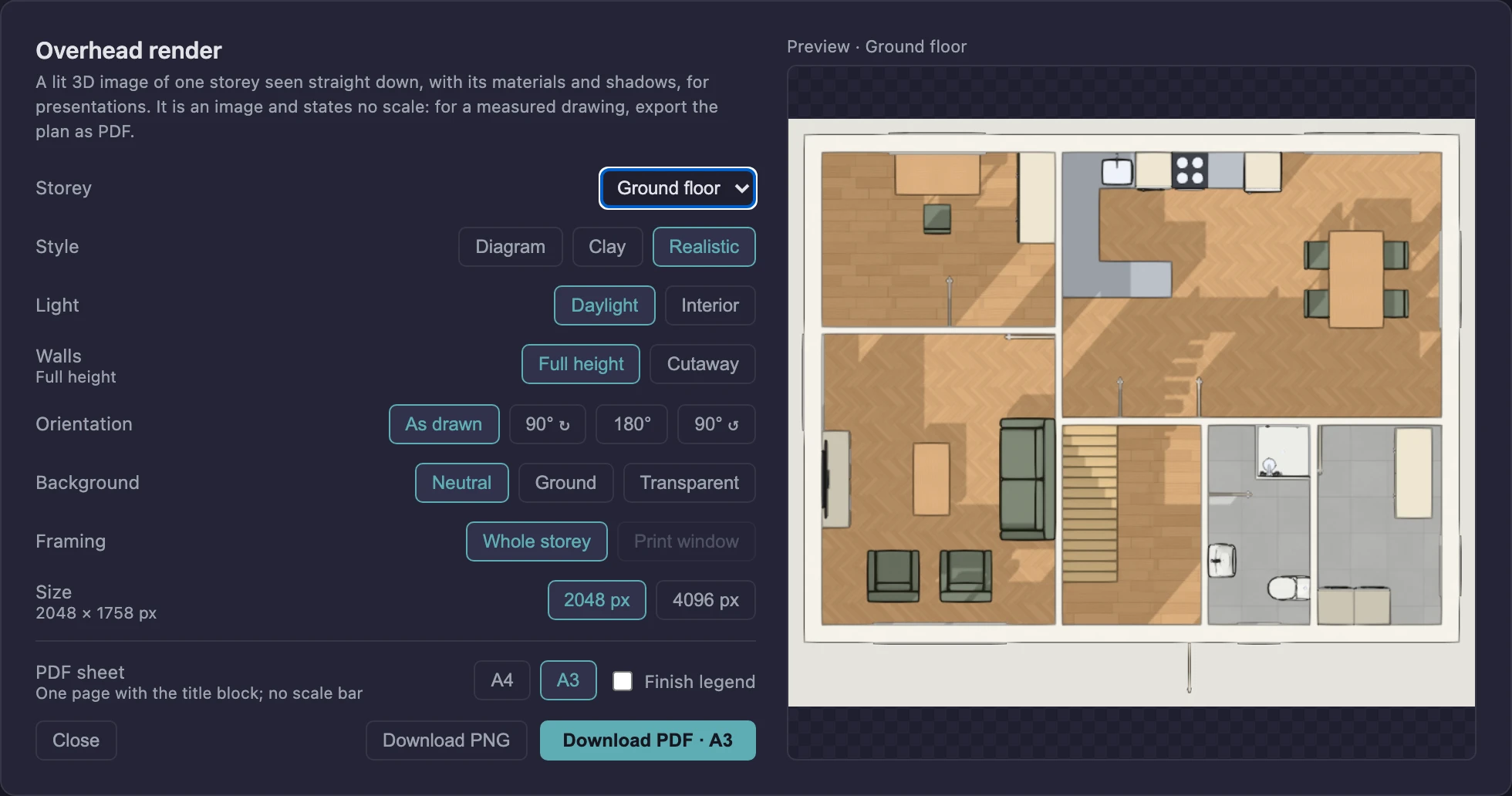
| Presentation images | Live 3D (Diagram, Clay, Realistic), saved views and walkthrough; overhead render of a storey as PNG or one-page PDF, a presentation image without scale (free). AI presentation images from a 3D view or from above on Pro: AI-generated, so details may differ from the design. No 360 views, video or 3D-model export | 3D images from SD to 8K (7680×4320) by project level; 3D tours at extra cost |
| CAD (DWG/DXF) | AutoCAD 2018 DWG or DXF of the sheet set (model space, sheet layouts, native dimensions), plus legacy R12 DXF; free. Gridsnap does not open DWG/DXF | DXF on upgraded projects (from 2 credits) |
Floorplanner details checked on 2026-10-14 against its own pricing and documentation (listed under Sources). Rows we could not confirm are left out rather than marked “no”. Gridsnap prices are the current list prices; corrections welcome via the editor's feedback form.
How this job works in Gridsnap
- Layout: draw walls to typed lengths, place doors and windows, and let rooms and areas appear as the walls close.
- Furnish: place items from the catalog, set them to the sizes of the products you are considering, and check the gaps around them in plan and 3D.
- Finishes: choose floors, individual wall faces and furniture parts from built-in materials and the texture library, and see them in the Textured plan and Realistic 3D.
- Share: export a Technical or Textured PDF with a finish legend, the finish schedule, a DWG, or an overhead render of the storey.
Where Floorplanner is strong
- A very large 3D library of furniture, decor and materials, including items from known brands
- Furnished 3D images up to 8K resolution, aimed at real-estate and interior presentation
- Pay per project with credits instead of a subscription when you only need one good output
- Your own wallpaper or image can be uploaded onto a wall
What to check before you choose Floorplanner
- Free projects export only SD images with a watermark; PDF and DXF need an upgraded project
- Its official pages give two different library counts (over 260,000 and over 180,000), so we do not repeat one
Common questions
Weighing more options? See the free floor plan creators roundup, the full feature list, or browse ready-made templates to judge the output directly.
Can I furnish and decorate a room in Gridsnap, or only draw it?
Both. Gridsnap has three activities in one project: Layout for the walls and openings, Furnish for furniture you can resize and place in plan or 3D, and Finishes for floors, wall faces and furniture parts. Manual furnishing and finishes are free; automatic furnishing, room kits and saved finish schemes are Pro.
Which gives me more for free, Gridsnap or Floorplanner?
For drawings, Gridsnap: its free tier exports vector PDF (technical or textured), PNG, DWG and DXF without a watermark. Floorplanner’s free projects export SD images with a watermark, and PDF, DXF and higher-resolution images need a project upgrade paid in credits.
Which makes better furnished renders?
Floorplanner, for high-resolution furnished 3D images: its paid project levels go up to 8K. Gridsnap has a live Realistic 3D view and a free overhead render of a storey as PNG or PDF. On Pro it also makes AI presentation images from a 3D view or from above, but they are AI-generated, so details may differ from the design.
Can I use my own textures?
Floorplanner’s help describes uploading your own wallpaper or image to a wall. Gridsnap uses its built-in materials and the Gridsnap texture library and does not take uploaded texture images.
Sources and dates
Floorplanner facts were checked on 2026-10-14 against these official pages. Prices and plans change; check the vendor's page before you buy. Gridsnap details on this page were updated on 2026-10-15.
- Floorplanner pricing
- Floorplanner project levels
- Floorplanner home page
- Help: apply a colour or material to a wall
- Help: apply a custom wallpaper to a wall
Gridsnap facts come from the current release and its help articles; prices from the pricing page.
Try it on your own plan
Gridsnap runs in the browser and drawing needs no account. Draw a room to real dimensions, furnish it and try a finish, then export the PDF.