The brief is what the home should do, in your own words. Open the Brief stage of the planning workspace and write in Who is it for, and how should it work?; everything else on the stage is optional. Writing and editing the brief is free. It does not create rooms by itself; the rooms live in Rooms & requirements.
Write the description
- Choose Describe your home in the New plan dialog, or open Brief from Open planning in the top bar.
- Write a few sentences: who lives there, how they use the home, and anything that must or must not happen. For example: A single-storey home for a couple who work from home. Two bedrooms, one used as a study. Open kitchen and living space facing the garden. One bathroom.
- Optional: open Size and footprint limits (optional) to give a total area or a maximum footprint. Those are explained in Area and footprint.
Under the box, one button says what happens next and what it costs. With rooms not yet listed it reads Generate layouts · 5 credits: Gridsnap Pro reads the description once (5 AI credits) and then arranges layouts, which uses no credits. On the free plan that button opens the offer instead; your description is kept either way. Arrange manually skips to drawing the Spaces yourself, for free. The other forms of the button are in Generate and choose a layout.
Choose what suggestions should plan
Open Details and questions and answer What should suggestions plan?:
- Plan a whole home — suggestions may add the everyday spaces a home needs (a kitchen, living space, bathroom and hall) when your words do not name them.
- Only the spaces I specify — for an extension, part of a home or a detailed room list. Nothing is added that you did not ask for.
Choose one explicitly. A brief that has no answer here is treated as Only the spaces I specify, and says so.
Add needs, constraints and preferences
Under Details and questions, Add a detail records something you already know, in one of three lists:
- Needs — what the plan must provide, such as three bedrooms or a room to work in.
- Constraints — what cannot change: the plot, the budget, walls that stay.
- Preferences — what would be good to have: morning light in the kitchen, a view of the garden.
Each item is ordinary text you can Edit or Remove. Adding one is free and sends nothing anywhere.
Clarify your brief
Questions you have not decided yet live under Clarify your brief, in three lists: To decide, Later and Resolved.
- Press Something to decide later, write the question in What do you still need to decide? and, optionally, Why it matters. Press Save.
- On the card, press Write an answer (or pick one of the offered answers, when a suggestion supplied some).
- Gridsnap previews the exact statement and where it will go — Will add to Needs. Change the Section to Constraints or Preferences if it fits better.
- Press Add decision to brief. The answer becomes an ordinary item in that list, marked Decision for: the question, and the question moves to Resolved.
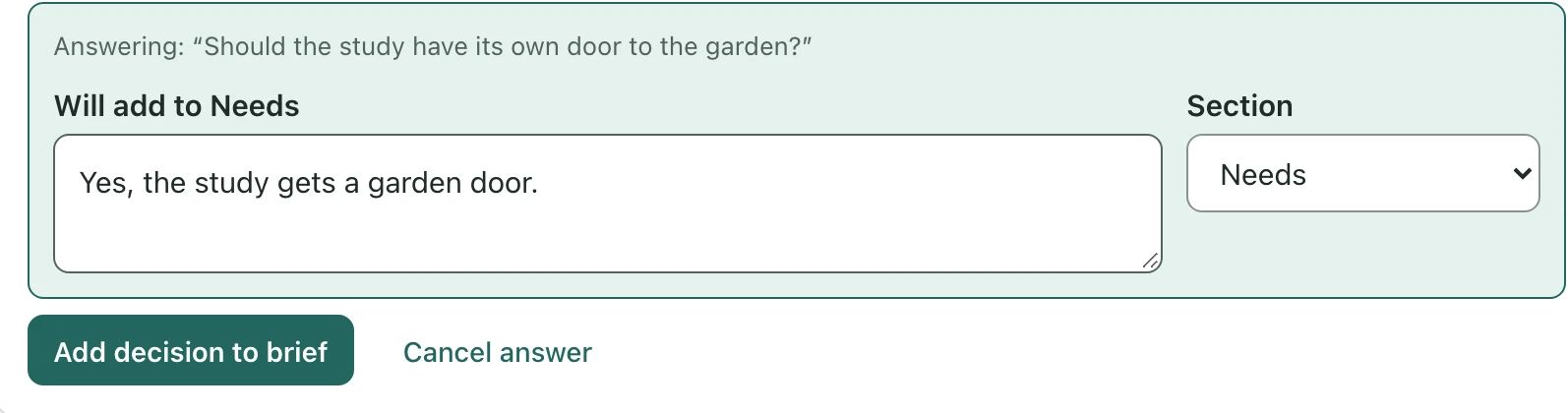
Until you press Add decision to brief, an answer is only a draft: the card says Unsaved answer. Leaving the plan asks whether to discard it, and refreshing the page loses it. Decide later moves a question to Later; Not relevant sets it aside. Both can be reopened.
A resolved question keeps its decision even if you reopen it; remove the decision yourself if it no longer applies. If the same statement is already in the brief word for word, the button reads Use existing decision and nothing is duplicated.
Answering a question changes the brief only. It never adds or resizes a room. Unanswered questions never stop you drawing Spaces or generating layouts; the questions that do stop a layout search are different, and are asked on the Layouts stage — see When no layout is shown.
Help refine my brief (Pro)
Help refine my brief · 5 credits in Details and questions asks the assistant to suggest clarifications and details for your description. It is part of Gridsnap Pro and uses 5 AI credits per request; on the free plan it is marked Pro. Suggestions arrive for review, unticked. Nothing changes until you tick the ones you want and apply them, and a suggested question is never treated as a requirement.
What the brief doesn’t do
- It is not read by itself. Rooms come from your list, or from a Pro Generate request that reads the description.
- A change to the description does not update rooms already listed. With Pro, the button then reads Update layouts · 5 credits, with Keep current rooms beside it, and nothing changes until you choose.
- It does not check anything against the drawing.