When part of a draft is right, mark those rooms with Keep and let Gridsnap search for other arrangements of the rest. Open Rework in the Develop band, keep the rooms you like, press Explore changes, compare an alternative with your current draft and press Apply changes. Kept rooms keep their outline; the doors that connect them may move.
Marking rooms with Keep or Allow changes is free. The searches — Explore changes, Rework selected rooms, Find alternatives and More alternatives — are part of Gridsnap Pro. They use no credits.
Keep rooms
- In Develop, press Rework. It lists the rooms on the storey and counts how many are kept.
- Press Keep beside a room, or select rooms on the plan or in the list and press Keep room (or Keep 2 rooms…). A kept room shows a small lock and reads Kept.
- Allow changes removes the mark. Each change is one undo step.
A kept room stays where it is whenever layouts are searched again. You can still move or reshape it yourself; the next search keeps it where it is then.
Rework or explore
- Explore changes looks for other arrangements of every room you have not kept.
- Rework selected rooms looks for other arrangements of only the rooms you selected. Everything else stays fixed for that search, without being marked as kept.
Gridsnap opens Rework your draft on the Layouts stage, with your Current draft beside the alternatives at one scale, and a count such as 1 kept · 4 rooms can change. Under Which rooms may change, click a room to switch it between may change and kept, then press Find alternatives. A layout you have not used yet can be reworked too: View details, then Rework this layout.
Compare and apply
Each alternative says what changed, such as 4 rooms reshaped · 4 connecting doors moved · entrance moved. Press Compare to see Current and Proposed side by side:
- kept and fixed rooms are filled or outlined, with their outline unchanged;
- changed rooms are hatched with a dashed edge;
- a connecting door that moved is ringed.
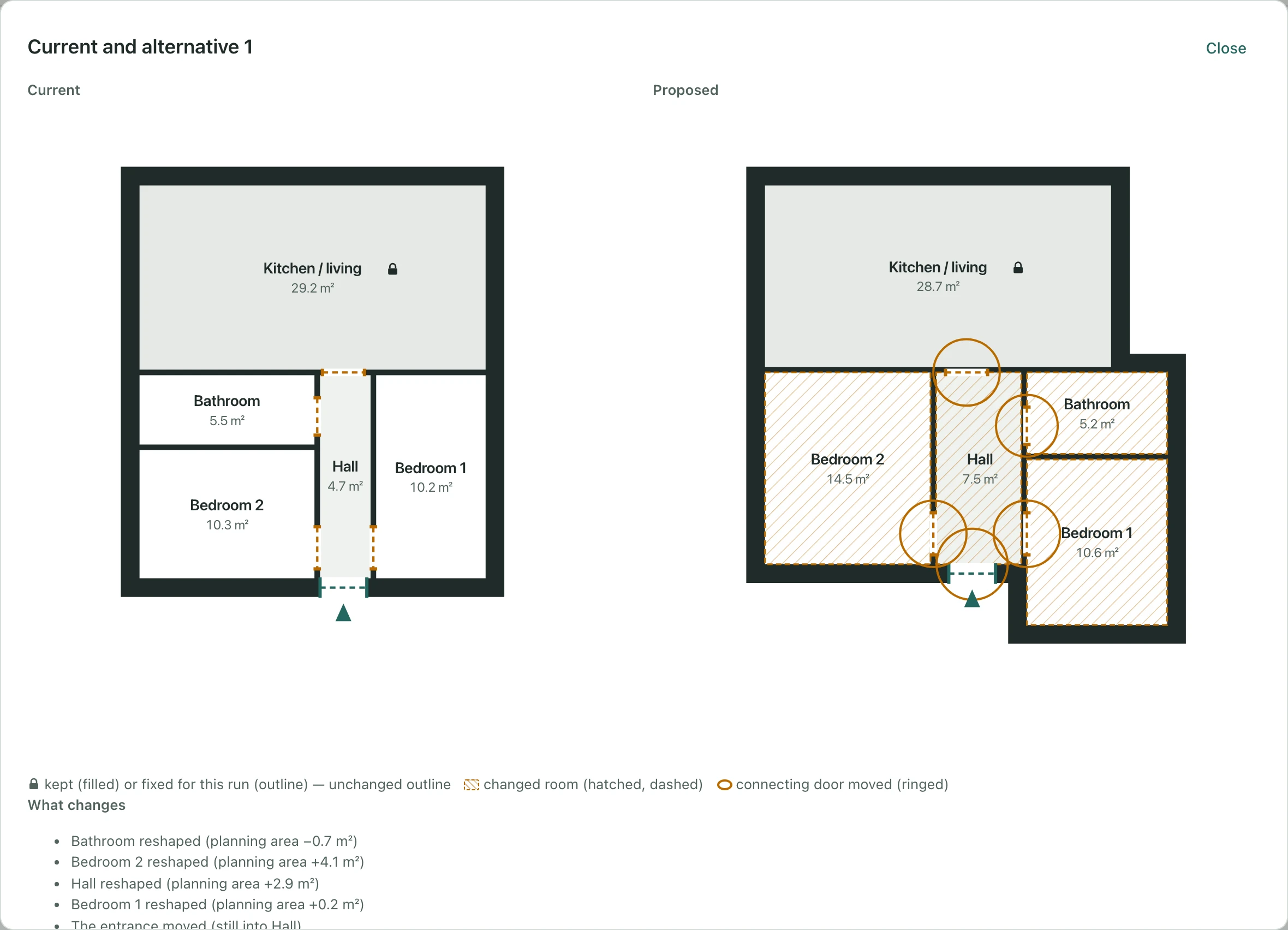
What changes lists every room that was reshaped with its change in planning area, each door that moved, and the whole plan’s outer footprint, outline corners and clear floor. Every alternative is checked again as a whole plan, so your sizes, connections and layout intent still apply.
Press Apply changes to update your draft in one undo step. Undo brings the previous arrangement back exactly. Back to layouts leaves without changing anything.
What “keep” keeps
A kept room keeps its outline. It does not lock everything near it:
- Its doors and entrance stay while they still work, and are placed again where they no longer do — a door you deleted, or an entrance that no longer faces the street side.
- Its usable area can still shift a little when a wall beside it moves. Compare lists that.
- A kept room you reshaped by hand is kept exactly as you drew it.
When rework is not available
| Message or situation | What to do |
|---|---|
| Spaces not linked to a room in the list | Link them to a requirement or delete them. See Spaces you have already drawn. |
| The draft was arranged inside a planning envelope | Rework does not use envelopes. Keep editing by hand, generate new layouts, or delete the envelope to rework without it. |
| The Spaces were already built into walls | Use Create variation under Built from spaces first. See Get the spaces back. Kept rooms stay kept in the variation. |
| No alternatives found | The search says so rather than showing your plan again. Letting one more room change is often enough. |
| The draft was discarded or replaced | Layouts says the rework no longer applies and offers Generate layouts. |
What this doesn’t do
- It reworks one storey’s draft, not built walls.
- It never changes the rooms in your list, their sizes or their connections.
- Like any layout, an alternative is a proposal: door swings, furniture and daylight are not checked.