Space planning lets you arrange rooms as simple Spaces before any wall exists, then turn the arrangement into a wall plan with Build plan. You can draw the Spaces yourself for free, or, with Gridsnap Pro, generate layouts to compare and use the one you prefer. Either way you finish with ordinary walls you edit like any others.
For the design method behind it (what to decide first, and why), read How to plan rooms before drawing walls. This page is about the Gridsnap controls.
Choose how to start
| You want to | Do this | Access |
|---|---|---|
| Draw the rooms yourself | List the rooms, then draw each one to size. See Draw and adjust spaces by hand. | Free |
| Compare arrangements first | List the rooms or describe the home, then generate layouts. See Generate and choose a layout. | Pro |
Generating layouts uses no AI credits, but it is still part of Pro: on the free plan the Generate layouts buttons open the offer. Reading a written description into a room list is a separate Pro request that uses 5 AI credits. Planning by hand never needs either.
To open planning, choose Describe your home in the New plan dialog, or Open planning in the top bar of a plan you already have. Gridsnap never moves rooms or walls you have already drawn when planning opens.
The three stages
The planning workspace has three tabs at the top: Brief, Layouts and Develop. You can move between them at any time, and Open editor returns to the ordinary editor without changing the plan.
- Brief — describe the home in your own words, with optional size limits, needs and questions still to decide. See Write and update your planning brief.
- Layouts — the rooms you need (Rooms & requirements) and, with Pro, layouts to compare. Without Pro this stage offers Draw the spaces. See Generate and choose a layout.
- Develop — the plan editor with your Spaces on the canvas, the Space program panel on the left and the Checks and Rework buttons along the top. See Draw and adjust spaces by hand.
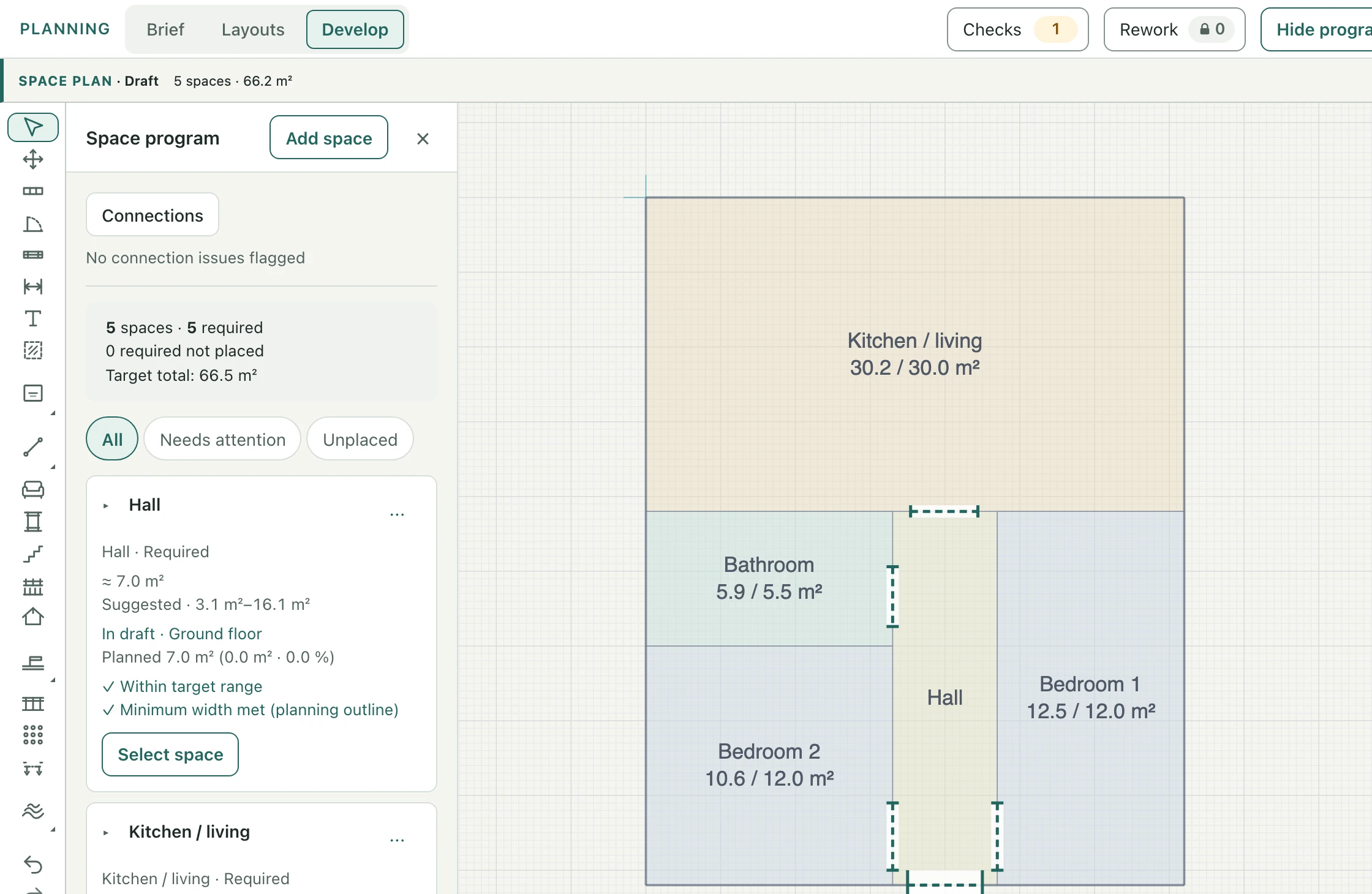
A Space is planning geometry: a named area with a target size. It is not a room yet. Rooms are what the walls enclose after Build plan, and their clear area is a little smaller because walls take up floor.
From spaces to walls
When every Space is in place and Checks shows nothing that blocks the build, click Build plan in the SPACE PLAN bar. In one undo step, Gridsnap creates exterior walls from the Outer wall preset, interior walls on the shared boundaries you did not leave open, and a room for each Space. The Spaces then leave the canvas and are kept as a read-only source.
Build places no doors. A generated layout’s planned doors are listed afterwards in Finish door placement; for Spaces you drew yourself, add doors with the Door tool. The full task, including getting the Spaces back with Create variation, is in Build walls, place doors and make a variation.
Find the task you need
- Rooms, sizes, connections and the entrance — Set rooms, connections and size limits, including what Suggested, Target and the bounds mean and how to link Spaces you drew earlier.
- A maximum outside size, or a saved exact rectangle — Area and footprint. A drawn envelope is different: see Draw an envelope.
- The brief, its questions and Help refine my brief — Write and update your planning brief.
- Generating, comparing and using layouts, credits, layout ideas and rooms that may be left out — Generate and choose a layout.
- Drawing Spaces, the envelope and Auto, Wall or Open boundaries — Draw and adjust spaces by hand.
- Keeping some rooms and trying others — Keep rooms and rework the rest.
- Limits — each task page ends with what it does not do. In short: planning works on one storey at a time, its checks are 2D measurements of the drawing, and a generated layout is a proposal to review, not an approved design.