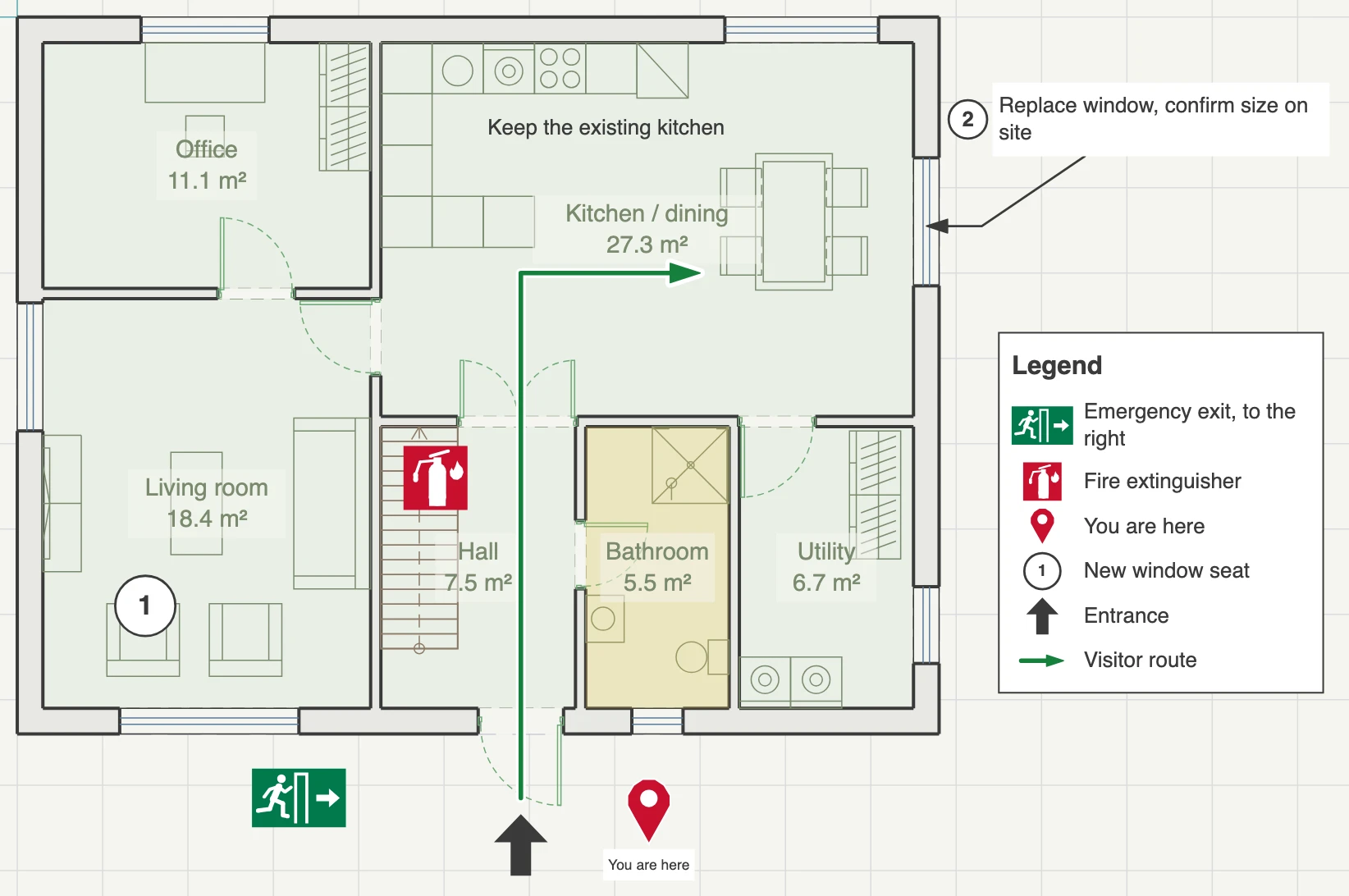
Annotations are the marks you put on a plan to explain it: a note, an arrow to the front door, the route a visitor walks, “You are here”, a numbered callout, a highlighted area. Pick a tool in the toolbox and click on the plan. They are drawing, not building: rooms, areas, the plan check, quantities and 3D do not read them, and all the tools are free.
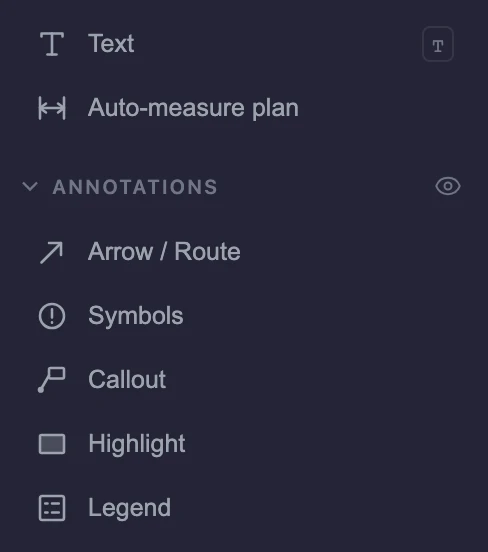
Where the tools are
Text is in the toolbox under Drawing. The other tools are under Annotations: click the heading to open the list. Both are there in every activity.
| Tool | Use it for | How it works |
|---|---|---|
| Text (T) | A note anywhere on the plan | Adding text notes |
| Arrow / Route | A line, an arrow, or a route with several turns | Arrows, lines and routes |
| Symbols | A marker or a safety sign from the library | Placing symbols |
| Callout | A note with a leader pointing at something | Adding callouts |
| Highlight | A translucent rectangle, circle or polygon over the plan | Highlighting an area |
| Legend | A list of this floor’s symbols and labelled routes | Adding a legend |
The Text tool also works in a section drawing. The others work on the plan only.
Should a room name be a text note?
No. Use Room / area (A) for a room’s name. A named room shows its area, appears in room schedules and stays on the plan when annotations are hidden. A text note does none of those.
What counts as an annotation
Every record made by the tools above counts, including text notes and highlights. So does any existing text label, unless you turned off Treat as annotation for it, and any drawn shape where you turned it on. Dimensions and room names do not count.
This decides what the switches hide. See Hiding annotations, on screen and in an export.
Keys that work in every annotation tool
Esc cancels what you are drawing. Pressed again with nothing in progress, it goes back to Select. Enter finishes a route or a polygon. On a touch screen, Finish and Cancel buttons appear above the plan while you draw one.
What this doesn’t do
- An annotation is not attached to what it points at. Move a wall and the note stays where it was.
- Markers do not number themselves. You type each number or letter.
- Annotations appear on the plan and in sections. Elevations and 3D have none.