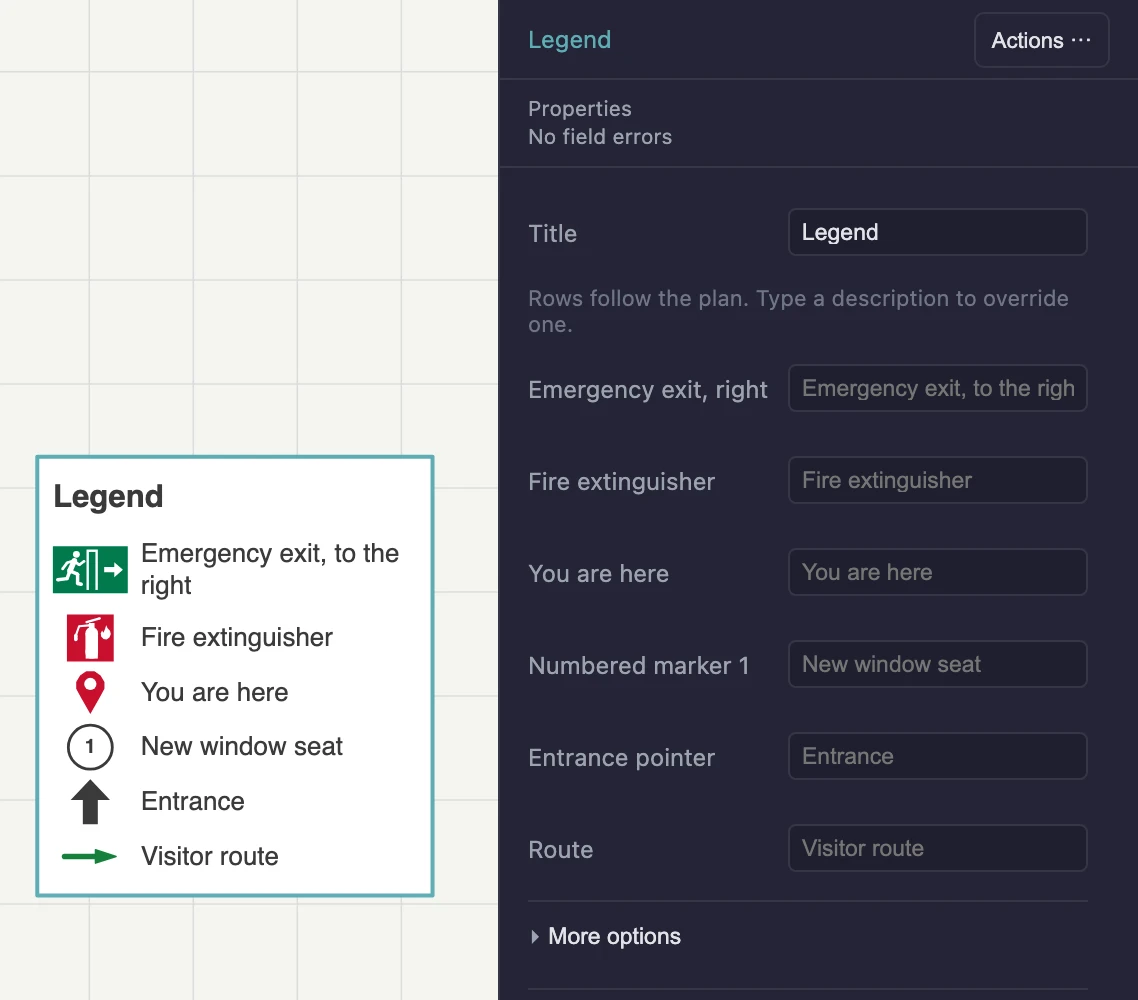
Choose Legend under Annotations in the toolbox and click where its top-left corner goes. The legend lists the symbols and labelled routes on this floor, and follows the plan from then on: add, remove or restyle one and its row changes by itself. The Symbols panel has an Add legend button too.
The tool needs something to list. On a floor with nothing eligible, it says so and a click creates nothing.
What gets a row
| On the plan | In the legend? |
|---|---|
| Safety signs, You are here, Entrance pointer | Yes |
| Numbered marker, Lettered marker | Only with Include in legend ticked |
| A route with a Legend label | Yes |
| Lines, arrows, text notes, callouts, highlights | No |
Items that are the same share one row, however many are on the plan. Rows run in a fixed order: safety signs, then general symbols, then routes. Their position on the plan does not change the order.
Change the wording
You do not add or delete rows. To change a row’s description, select the legend and type in that row’s field. Leave it empty to go back to the default. The Title defaults to “Legend”.
Under More options are the Text height, Width, Background (White or None) and Border.
The legend lists only what is shown
A symbol on a hidden layer, or on a layer that does not print, has no row on screen or in the export. The same goes for the legend itself when annotations are turned off.
If everything it lists goes away, the editor shows “No visible legend items” and the export prints nothing for it. It does not widen the page either.
What this doesn’t do
- A legend lists its own floor only. Each storey needs its own.
- It does not list dimensions, walls, doors or furniture.
- You cannot reorder its rows.