To hide annotations on screen, click the eye beside Annotations in the toolbox. To leave them out of an export, turn off Include annotations in Print & export. Neither one deletes or changes anything, so you can keep one plan and export a marked-up copy and a clean copy from it.
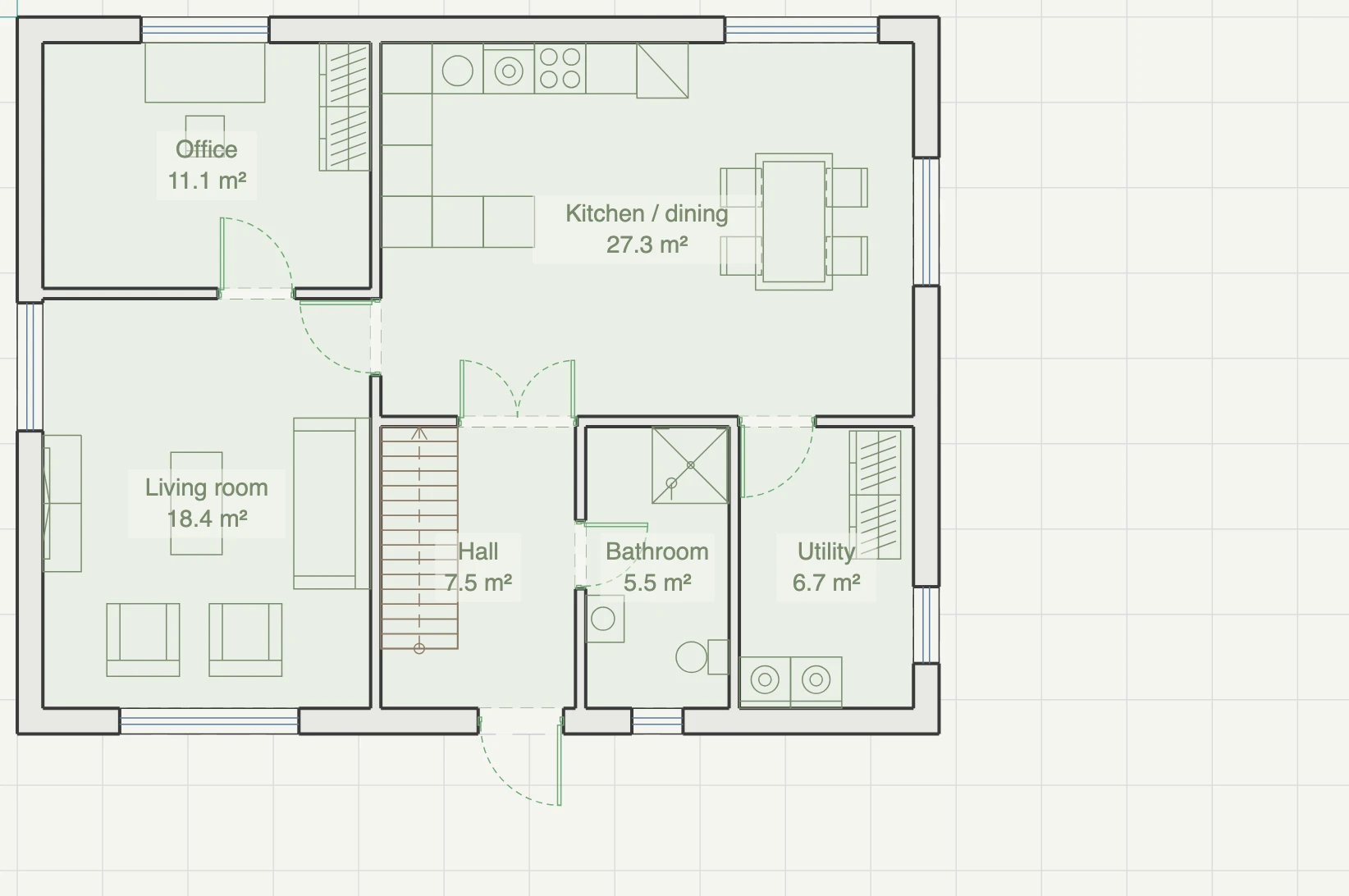
On screen
Click the eye beside Annotations in the toolbox, or choose Annotations in the Appearance menu on the plan or in a section. While they are hidden, the toolbox says Hidden. This is a view setting, not an edit.

In an export
Print & export has an Include annotations checkbox, on by default. The choice is remembered for the plan on this device.
To make a marked-up copy and a clean copy:
- Open Print & export (⌘/Ctrl+P) and export with Include annotations on.
- Turn it off and export again.
The sheet is framed on what it prints, so an annotation far from the building widens the marked-up copy and not the clean one. If the selected sheets hold no annotations, the checkbox says so.

How this works with layers
Annotations have their own Annotations layer in Layers, with the usual Show and Print switches. An annotation must pass both tests:
- On screen: its layer is shown, and annotations are shown.
- In an export: its layer prints, and Include annotations is on.
A text note follows the Text labels layer rather than the Annotations layer, so check that one if a note will not appear.
Keep one piece of text or a shape on the drawing
Text labels and drawn shapes have a Treat as annotation switch, under More options for a text label. Turn it off for text that belongs on the drawing itself, and it follows its layer alone. Turn it on for a drawn shape that should hide with the notes.
Room names and dimensions never hide with annotations. Use their layers for that.
What each export does with them
- PDF and PNG draw annotations exactly as the plan does.
- DWG and DXF put them on their own ANNOTATIONS layer, so they can be turned off in CAD too. They arrive as ordinary lines and text, not as editable Gridsnap callouts or legends.
If an included symbol is missing from this version of Gridsnap, Print & export names it rather than leaving it out without saying so. Replace or delete it, or turn off Include annotations. Locate takes you to it.